Fix
Robot vacuum won't dock or keeps returning to the dock
Published
Note: This page contains affiliate links. If you buy through them we may earn a commission at no extra cost to you. Learn more
In short
A robot that cannot dock usually has a blocked or badly placed dock, dirty sensors or contacts, or a map that no longer matches the room. A robot that keeps returning to the dock mid-clean is normally low on battery, has a full bin or blocked brush, or is following a schedule or no-go zone. Clear space round the dock, clean the sensors, and check the battery and app map.
Products for this job
Compare all 6 productsiRobot Roomba 205 DustCompactor: no dock needed
Check price on AmazonAffiliate linkiRobot Roomba Combo 10 Max: pad lifts onto the robot's top
Check price on AmazonAffiliate linkiRobot Roomba 505 Combo: LiDAR and AutoWash Dock
Check price on AmazonAffiliate link
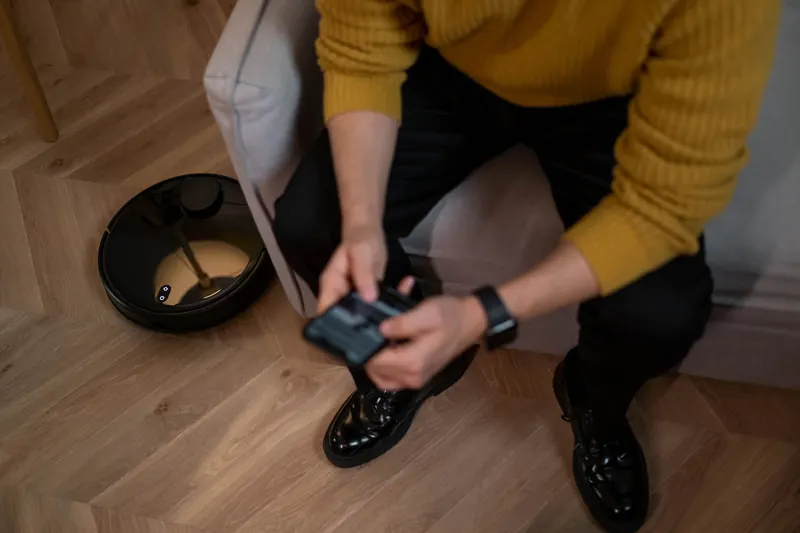
Docking problems come in two forms. Either the robot wanders round looking for its dock and gives up, or it keeps heading back to the dock before the job is done. Both are usually caused by something simple: the dock is in a poor spot, a sensor is dirty, the battery is tired or the saved map has gone wrong. The checks below go from the quickest to the most involved, and apply to iRobot Roomba, Shark, Ecovacs, Eufy, Roborock and Dreame robots alike, though the exact settings live in each maker's app.
Symptom, likely cause and what to try
Find the row that matches what your robot is doing, then work through the matching check below.
| Symptom | Likely cause | What to try |
|---|---|---|
| Robot circles near the dock but will not go on | Cramped dock, dock on a rug, dirty dock sensor window | Clear space round the dock, move it to hard floor, wipe the sensor windows |
| Robot drives on but does not charge | Dirty contacts or dock not level | Clean the contacts, level and fix the dock |
| Robot cannot find the dock at all | Dock moved, unplugged or out of sight, map out of date | Put the dock back, check power, remap if needed |
| Robot returns to the dock mid-clean | Low battery, full bin, recharge and resume | Charge fully, empty the bin, check the battery |
| Robot keeps stopping and returning | Brush or wheel jam, full bin sensor, error in the app | Clear the brushroll and wheels, check the app for an error |
| Mop robot will not dock properly | Mop pad, wet ramp or dock base out of line | Dry the ramp, refit the pad, check the base plate |
Check 1: dock position and clearance
The dock sends out an infrared or similar signal that the robot uses for the last part of its approach. If the dock is boxed in by furniture, tucked in a corner, placed on thick carpet or facing a mirror or a tall shiny surface, the robot can struggle to line up. Most makers ask for clear space either side and in front of the dock, typically around half a metre each side and more in front, but use the figures in your manual.
A good spot is a hard, level floor against a flat wall, near the centre of the area the robot cleans, with the cable tucked away behind the dock. Avoid the top of a staircase: the robot needs room to turn without its cliff sensors detecting the drop.
- 1
Move anything within about half a metre of the sides of the dock and clear the area in front.
- 2
Put the dock on hard, level floor, flush against the wall.
- 3
Tuck the power cable behind the dock so the robot cannot snag it.
- 4
Check that the dock's power light is on.
- 5
Send the robot home from the app and watch its approach.
Check 2: clean the sensors and contacts
The robot relies on several sensors to dock: the docking sensor window on the front of the robot, the signal window on the dock, the cliff sensors underneath and, on lidar robots, the laser turret on top. A layer of dust on any of them can make the final approach unreliable. Dirty charging contacts lead to a robot that docks but does not charge, which then looks like a docking fault on the next run.
Wipe each window and sensor gently with a dry microfibre cloth. The cliff sensors are small windows round the front edge of the underside. If they are dirty the robot may think it is at a drop and back away from the dock, especially if the dock sits on a dark rug or a dark floor. For a fuller routine, see how to clean a robot vacuum.
Note:Unplug the dock before cleaning its contacts or signal window, and keep water away from both. Use a dry or barely damp cloth only.
Check 3: battery level and recharge and resume
Robots are designed to head back to the dock when the battery runs low. On many models they then charge and carry on where they left off, a feature usually called recharge and resume. If your robot returns after a short time, check its battery level in the app. A battery that drops quickly from full is likely worn, and a replacement is covered in robot vacuum battery replacement.
Also check the bin. On self-emptying models the robot returns to empty when its bin is full, and if the dock bag is full or the evacuation port is blocked, it can keep shuttling back and forth. Empty the bin, check the dock bag and clear any debris in the port. If your robot will not charge at all once docked, work through robot vacuum not charging.
Check 4: brushes, wheels and the app
A robot that keeps stopping and going home is often reacting to a fault. Hair wound round the brushroll or side brush, a wheel that will not turn freely or a jammed front castor can all trigger an error or a return. Turn the robot over on a soft surface, remove the brushroll, cut away hair and spin each wheel by hand. Then open the app: it usually shows an error message or code that the lights alone do not explain.
Check the schedule and settings too. A scheduled clean of only some rooms, a no-go zone across a doorway or a very short cleaning mode can make the robot finish early and head back, which looks like a fault but is the robot doing as it was told. For Shark and iRobot specifics, see Shark robot vacuum error codes and Roomba not working.
Check 5: map errors and moving the dock
Mapping robots store the dock's position on the saved map. If you move the dock, rearrange the furniture or the robot gets picked up and put down elsewhere, it can lose track of where home is. Put the dock back where it was, or if you want it in a new place, check whether your app lets you update the dock position. If not, delete the map and let the robot run a fresh mapping clean starting from the dock. Our explainer on how robot vacuums map your home covers why this happens.
If none of the checks work, try a soft reset as described in how to reset a robot vacuum. A factory reset is a last resort because it erases maps and schedules. If the robot is past its best, compare current models in our guides to the iRobot Roomba range and the best self-emptying robot vacuums.
Frequently asked questions
Why won't my iRobot Roomba dock? The common causes are a cramped or moved Home Base, dirty charging contacts or sensor windows, and a map that no longer matches the room. Clear space round the base, wipe the contacts and windows, and check the iRobot Home app for an error.
Why does my Shark robot vacuum keep returning to the dock? Usually because the battery is low, the bin is full, or a brush or wheel is jammed and the robot has stopped with an error. Check the battery level and any message in the SharkClean app, then clear the brushroll and wheels.
Why does my robot vacuum keep stopping in the middle of a room? Stopping mid-clean is usually a jam, a blocked or dirty sensor, or a low battery. Look at the app for an error, clean the cliff sensors and brushes, and make sure it is fully charged before the next run.
My robot mop has problems docking. What should I check? Make sure the mop pad or plate is fitted correctly, the dock's ramp is dry and clean, and the base plate is clipped into the dock if your model has one. A wet or slippery ramp can stop the wheels gripping.
What you need
- Check price on AmazonAffiliate link
iRobot Roomba 205 DustCompactor: no emptying station needed
From: iRobot Roomba models compared: Combo, j series and s9+
- Check price on AmazonAffiliate link
Shark PowerDetect ThermaCharged RV2920XE: heated mop wash
From: Shark robot vacuums compared: PowerDetect, Matrix and Navigator
- Check price on AmazonAffiliate link
Xiaomi H40: compact 32.6 cm self-empty base
- Check price on AmazonAffiliate link
Dreame L40 Ultra Gen2: 25,000 Pa and an extending mop