Fix
Shark robot vacuum error codes and fixes
Published
Note: This page contains affiliate links. If you buy through them we may earn a commission at no extra cost to you. Learn more
In short
Shark robot vacuum errors fall into a handful of groups: a jammed brushroll, side brush or wheel, dirty cliff sensors, a stuck bumper, a missing or full dustbin, and battery or charging faults. The meaning of each number differs between Shark models, so check the SharkClean app, which usually shows the error in words, or your manual. Most errors clear once you remove the blockage or clean the sensor and restart the robot.
Products for this job
Compare all 7 productsShark PowerDetect ThermaCharged RV2920XE: heated mop wash
Check price on AmazonAffiliate linkShark Matrix RV2310AE: vacuum only, 45-day bagless base
Check price on AmazonAffiliate linkShark PowerDetect NeverTouch Pro AV2810ZEWH: LiDAR and 3D sensor
Check price on AmazonAffiliate link
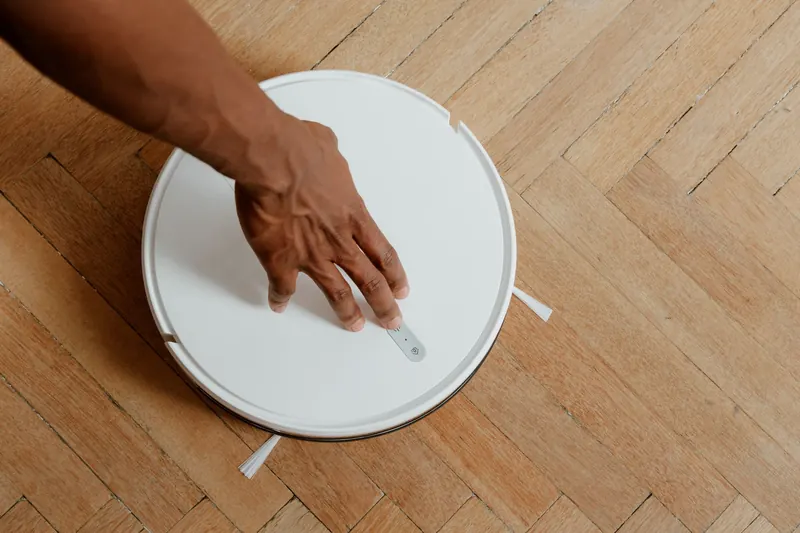
When a Shark robot stops and flashes a light or shows an error number, it is telling you that something is blocking it or that a sensor has spotted a problem. Shark has made many robot models over the years, from the older ION robots to the newer AI and Matrix lines with self-emptying bases, and the numbering of errors is not the same across all of them. So rather than guessing at a number, the reliable approach is to read the message in the SharkClean app or the manual for your exact model, then use the fixes below for that type of fault. They are ordered from the quickest to the most involved.
How to read a Shark error on your model
Start in the SharkClean app. On connected Shark robots the app normally names the problem in plain words, such as a brushroll that needs checking or a bin that is missing, which removes the guesswork about the number. If your robot is not connected, the error is shown with a flashing light pattern or a number, and your manual has a table that explains it for your model. Shark's UK support site also hosts manuals by model number, which you will find on the label underneath the robot.
Because the same number can mean different things on different Shark models, avoid relying on lists you find online for another model. Search queries such as error 2 or error 9 are common, but the safe answer is to look the number up for your exact model and then use the matching fix below.
- 1
Note the error number or light pattern, and whether the robot also made a sound.
- 2
Open the SharkClean app and check the robot's status or notifications.
- 3
If there is no app message, find your model number on the label underneath the robot.
- 4
Look up that error in the manual for your model on Shark's support site.
- 5
Use the matching section below, then restart the robot.
Error categories: symptom, likely cause and what to try
This table groups the faults that Shark error codes generally point to. Use it once you know which part your model's code refers to.
| Symptom or error type | Likely cause | What to try |
|---|---|---|
| Brushroll error | Hair, string or a sock wrapped round the brushroll | Remove the brushroll, cut away hair, check the end caps |
| Side brush error | Hair round the side brush stem, bent bristles | Pull off the side brush, clear the stem, replace if bent |
| Wheel or drive error, robot stuck | Wheel jammed with hair or lifted off the floor | Clear the wheel axles, move the robot to open floor |
| Cliff sensor error | Dirty cliff sensors, dark rug, robot near a drop | Wipe the sensors, move the robot, check for dark floors |
| Bumper error | Bumper stuck in or debris behind it | Tap the bumper round its edge, clear trapped debris |
| Dustbin error | Bin missing, not seated or full | Empty and refit the bin until it clicks |
| Battery or charging error | Dirty contacts, power switch off, worn battery | Clean the contacts, check the switch, contact Shark |
Fixing brush, side brush and wheel errors
Jams are the most common reason for a Shark robot to stop. Long hair, pet hair, carpet fringes and thread wrap round the brushroll and side brushes, and the motor stops when it cannot turn. Wheels pick up hair round their axles too, and a robot that has climbed onto a cable or a low bar can lift a wheel off the floor and report a drive error. If you have pets, our best robot vacuum for pet hair guide covers brush designs that tangle less.
- 1
Switch the robot off and turn it over on a soft surface.
- 2
Release the brushroll cover, lift out the brushroll and cut away wrapped hair with scissors along the groove.
- 3
Clear hair from the brushroll's end caps and the slots they sit in.
- 4
Pull off the side brush, clear the stem and refit it. Replace it if the bristles are badly bent.
- 5
Spin each wheel and the front castor by hand and remove anything wound round them.
- 6
Refit everything, switch on and start a clean on open floor.
Fixing cliff sensor and bumper errors
Cliff sensors are small windows round the front edge of the underside that look down at the floor so the robot does not fall down stairs. If they are dusty, the robot may think it is at the edge of a drop and refuse to move. Very dark rugs and some black floors can have the same effect, because they reflect little light back to the sensor. Wipe each sensor with a dry cotton bud or microfibre cloth, then try again away from dark floor coverings.
The bumper on the front of the robot tells it when it has hit something. If it is stuck in, or a piece of debris is wedged behind it, the robot thinks it is permanently touching an obstacle. Press round the edge of the bumper several times to check it springs back, and clear anything trapped behind it. Our guide to how to clean a robot vacuum covers each sensor in more detail.
Fixing dustbin, battery and charging errors
A dustbin error usually means the bin is missing, not clicked fully into place or so full that it blocks the airflow. Empty it, clean the filter, and push the bin back in until it clicks. On self-emptying Shark models, check the evacuation port on the base and on the robot for blockages, and empty the base's bin. Our best self-emptying robot vacuums guide explains how those bases work.
Battery and charging errors are often caused by dirty charging contacts or the power switch on the side of the robot being off. Clean the contacts on the robot and the base, check the switch, and leave the robot on the base for several hours. If the error persists, see robot vacuum not charging and contact Shark support, especially if the robot is still under warranty.
Note:Shark robots use lithium-ion batteries. Unplug the base before cleaning its contacts, and stop using the robot if the battery is swollen, hot or smells of burning. Do not open, pierce or try to repair the battery or the base's electrics: use Shark's service or a qualified repairer.
If the error keeps coming back
Once the cause is cleared, restart the robot. Switch it off with the power switch on the side, wait a minute and switch it on again, or follow the soft reset in how to reset a robot vacuum. If the same error returns straight away on a clean robot, a motor, sensor or wheel module may have failed, and Shark support is the next step. Some parts, such as brushrolls, side brushes, filters and on many models the battery, are sold as spares.
If the robot keeps going home rather than showing an error, see robot vacuum won't dock or keeps returning to the dock. If you are weighing up a newer model, our Shark robot vacuum range guide explains the current lines, and Shark vs Roomba compares the two brands.
Frequently asked questions
What does error 2 or error 9 mean on a Shark robot vacuum? The meaning of each number varies between Shark models, so check the SharkClean app, which usually names the fault, or the manual for your model number. The fault will almost always be one of the categories above, such as a brush jam, a sensor or the bin.
How do I fix a Shark robot vacuum cliff sensor error? Switch the robot off, wipe the small sensor windows round the front edge of the underside with a dry cloth or cotton bud, and restart it away from stairs and very dark rugs.
Where do I find the manual for my Shark robot? Find the model number on the label underneath the robot, then search for it on Shark's UK support site, which hosts manuals and troubleshooting by model.
Will resetting my Shark robot clear the error? Restarting clears the message once the cause is fixed, but if the brush, sensor or bin problem is still there, the error will come back. Fix the cause first, then restart.
What you need
- Check price on AmazonAffiliate link
Shark PowerDetect ThermaCharged RV2920XE: heated mop wash
From: Shark robot vacuums compared: PowerDetect, Matrix and Navigator
- Check price on AmazonAffiliate link
Xiaomi H40: compact 32.6 cm self-empty base
- Check price on AmazonAffiliate link
iRobot Roomba Combo 10 Max: mop retracts to top of robot