How-to
How to reset a robot vacuum
Published
Note: This page contains affiliate links. If you buy through them we may earn a commission at no extra cost to you. Learn more
In short
Start with a soft reset: switch the robot off (or hold the power button until it shuts down), wait about a minute and switch it back on. If the problem is the app or Wi-Fi, do a Wi-Fi reset, which on many models means holding one or two buttons for several seconds until a light or voice prompt confirms it. Only use a factory reset as a last resort, because it erases saved maps, rooms and schedules.
Products for this job
Compare all 7 productsShark PowerDetect ThermaCharged RV2920XE: heated mop wash
Check price on AmazonAffiliate linkShark Matrix RV2310AE: vacuum only, 45-day bagless base
Check price on AmazonAffiliate linkShark PowerDetect NeverTouch Pro AV2810ZEWH: LiDAR and 3D sensor
Check price on AmazonAffiliate link
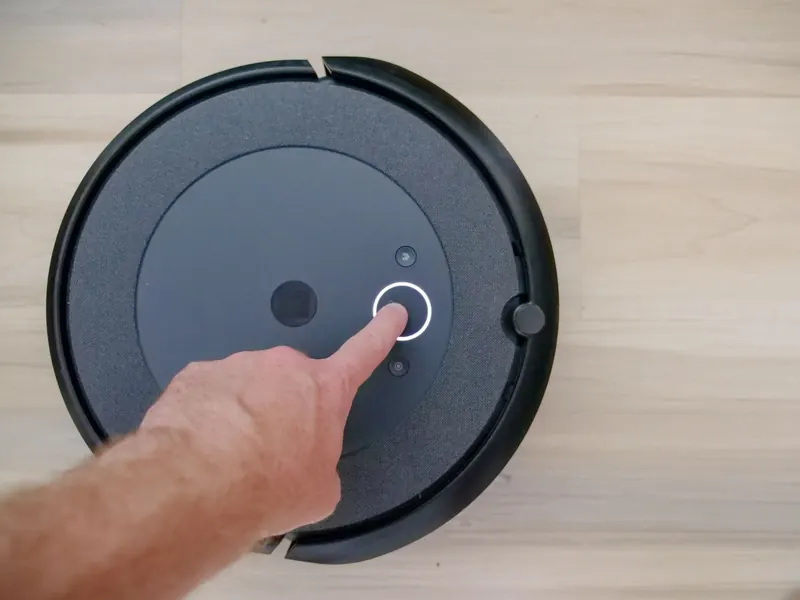
Most robot vacuum glitches, from a robot that freezes mid-clean to one that has dropped off the app, clear with a simple restart. There are three levels of reset and it pays to use them in order: a soft reset that just reboots the robot, a Wi-Fi or network reset that clears the connection settings, and a factory reset that wipes everything back to how it left the factory. The button sequences differ between brands and even between models of the same brand, so treat the patterns below as a guide and check your manual or the maker's app for the exact steps on your model.
The three kinds of reset and when to use each
A soft reset is a restart. It clears a temporary fault, such as a robot that will not respond to buttons or keeps showing an error after you have cleared the cause. Nothing is lost: maps, schedules and Wi-Fi settings stay in place.
A Wi-Fi reset (sometimes called network reset or pairing mode) clears the saved network details so you can connect the robot again. Use it after changing your router or broadband provider, changing the Wi-Fi password, or when the app shows the robot as offline even though it is working normally.
A factory reset returns every setting to default. It is useful before selling or giving away a robot, or when a fault survives everything else. It erases maps, room names, no-go zones and schedules, and on many models it removes the robot from your app account too.
| Reset | Fixes | What you lose |
|---|---|---|
| Soft reset (power off and on) | Frozen robot, stuck error message, unresponsive buttons | Nothing |
| Wi-Fi reset | Robot offline in the app, new router, new Wi-Fi password | Saved network details only |
| Factory reset | Persistent faults, preparing to sell or give away | Maps, rooms, zones, schedules, app pairing |
How to do a soft reset on any robot vacuum
The soft reset follows the same idea on almost every brand. Many robots have a physical power switch on the side or underneath, separate from the clean button on top. Others only have the top buttons, in which case a long press usually turns the robot off.
- 1
Lift the robot off the dock so it is not receiving charge.
- 2
If there is a power switch on the side or underside, switch it off. If not, hold the power or clean button for several seconds until the lights go out.
- 3
Wait around 30 to 60 seconds.
- 4
Switch the robot back on, or press and hold the power button until it starts up.
- 5
Put it back on the dock and let it settle before starting a clean.
Note:If your robot has no power switch and will not turn off with the buttons, letting the battery run flat is not recommended as a fix. Check the maker's support pages or contact them instead of opening the robot to disconnect the battery.
Wi-Fi reset: the general pattern by brand
A Wi-Fi reset usually puts the robot into pairing mode, so you can then add it again in the maker's app. Robot vacuums typically connect on the 2.4 GHz band, so make sure your phone is on a 2.4 GHz network or that your router's combined network allows it. The patterns below are common, but they vary by model and change over time, so check your manual or the app's add-device screen, which usually shows the exact button sequence for your robot.
If you want to know more about how the app and connection fit together, our guide on whether robot vacuums need Wi-Fi covers what still works offline, and the Wi-Fi troubleshooting article goes through connection faults in more depth.
| Brand | Typical pattern on many models | Where to confirm |
|---|---|---|
| Shark | Holding the Dock and Max (or Clean) buttons together for several seconds until the Wi-Fi light flashes | SharkClean app and manual |
| Ecovacs Deebot | Pressing a reset or Wi-Fi button under the top cover, or holding a button until a voice prompt | Ecovacs Home app and manual |
| Eufy RoboVac | Holding the power or home button for several seconds until the light flashes or the robot plays a tone | Eufy Clean app and manual |
| Roborock | Holding the Dock and Spot (or Power and Dock) buttons until a voice prompt says Wi-Fi is reset | Roborock app and manual |
| iRobot Roomba | Holding the Home and Spot buttons, or the Clean button, depending on series | iRobot Home app and manual |
How to factory reset a robot vacuum
A factory reset is more involved and is often done through the app rather than the buttons. On many models you will find it under device settings, sometimes labelled restore factory settings or remove device. Some robots also have a physical reset pinhole or a button combination that needs to be held for longer than the Wi-Fi reset, often 10 seconds or more, while the robot is switched on.
Because the sequences are model-specific and easy to confuse with the Wi-Fi reset, look up the exact steps in your manual or the maker's support site before you start. Once it is done, set the robot up as if it were new. Our set-up guide walks through the first run and the mapping clean.
- 1
Make a note of your room names, no-go zones and schedules if you want to recreate them.
- 2
Check whether your app offers a factory reset option for the robot, and use that if it does.
- 3
If not, find the button combination or reset pinhole for your model in the manual.
- 4
Hold the buttons until the robot confirms with a tone, voice prompt or light pattern.
- 5
Add the robot to the app again and let it run a fresh mapping clean.
Note:A factory reset erases saved maps, rooms, no-go zones and schedules, and on many models it unlinks the robot from your account. Only use it when a soft reset and Wi-Fi reset have not helped, or when the robot is leaving your home.
When a reset will not fix the problem
A reset only clears software and connection faults. If the robot shows the same error straight after a restart, the cause is usually physical: hair round the brushroll, a jammed wheel, a full bin, dirty cliff sensors or charging contacts, or a tired battery. Clean the robot thoroughly first, as described in how to clean a robot vacuum, then try again.
If your robot will not charge or will not return to the dock after a reset, see robot vacuum not charging and robot vacuum won't dock. For brand-specific faults, our pages on Shark error codes and Roomba not working go through the common categories.
If the robot is old and resets keep failing, it may be worth comparing current ranges. Our Shark robot vacuum range and iRobot Roomba models compared guides explain what each line offers.
Frequently asked questions
Does resetting a robot vacuum delete the map? A soft reset (power off and on) does not, and a Wi-Fi reset normally keeps the map too. A factory reset does erase maps, rooms and schedules on most models, so you will need to run a new mapping clean afterwards.
How do I reset the Wi-Fi on a Shark robot vacuum? On many Shark robots you hold the Dock and Max (or Clean) buttons together for several seconds until the Wi-Fi light starts flashing, then add the robot again in the SharkClean app. The exact buttons depend on the model, so check your manual or the app.
Why does my robot keep going offline after a reset? The usual causes are a 5 GHz-only network, a weak signal where the dock sits, or a router that changes channel. Move the dock closer to the router or check that a 2.4 GHz network is available.
Is it safe to unplug the dock to reset it? Yes, unplugging the dock from the wall for a minute and plugging it back in is a normal way to reset the dock itself, and it is a sensible step if the robot will not charge.
What you need
- Check price on AmazonAffiliate link
Shark PowerDetect ThermaCharged RV2920XE: heated mop wash
From: Shark robot vacuums compared: PowerDetect, Matrix and Navigator
- Check price on AmazonAffiliate link
iRobot Roomba 205 DustCompactor: no emptying station needed
From: iRobot Roomba models compared: Combo, j series and s9+
- Check price on AmazonAffiliate link
eufy E28 Omni: 20,000 Pa plus a portable deep cleaner
From: Eufy robot vacuums compared: Omni stations and roller mops
- Check price on AmazonAffiliate link
Ecovacs T80S Omni: self-washing roller mop, 24,800 Pa