Fix
Roomba not working or will not run: fixes
Published
Note: This page contains affiliate links. If you buy through them we may earn a commission at no extra cost to you. Learn more
In short
A Roomba that will not run is usually blocked by hair in the brushes or wheels, held up by dirty cliff sensors, short of charge, or reporting a bin or filter problem. Check the iRobot Home app, which normally explains the error in words, then clean the brushes, wheels and sensors, empty the bin and charge it fully. Error numbers differ between Roomba series, so confirm yours in the app or manual.
Products for this job
Compare all 6 productsiRobot Roomba 205 DustCompactor: no dock needed
Check price on AmazonAffiliate linkiRobot Roomba Combo 10 Max: pad lifts onto the robot's top
Check price on AmazonAffiliate linkiRobot Roomba 505 Combo: LiDAR and AutoWash Dock
Check price on AmazonAffiliate link
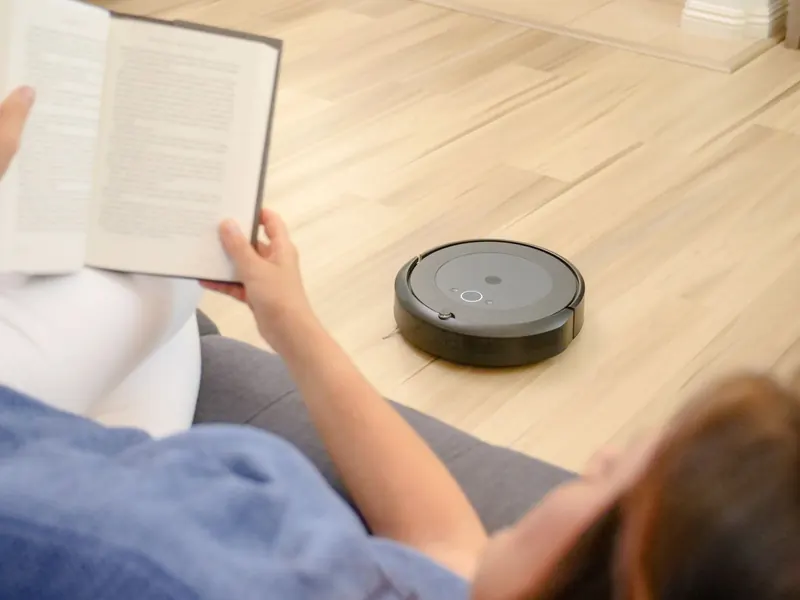
iRobot Roomba robots are built to tell you when something is wrong, with a spoken message, a light ring pattern or an error number in the app. The faults behind those messages are mostly the same across the range: something is tangled, a sensor is dirty, the bin or filter is blocked, or the battery or Home Base is not doing its job. The checks below run from the quickest to the most involved. Roomba has many series, from older 600 and 900 models to the newer Combo and j series, and the details differ, so keep the iRobot Home app or your manual to hand.
Start with the app and the error message
On connected Roombas, the iRobot Home app usually shows what the robot is complaining about in plain words, often with a short guide to fixing it. That is more reliable than looking up an error number elsewhere, because the same number can mean different things on different series. Non-connected models speak the error aloud or flash a pattern on the light ring, and the manual for your series has the table.
Searches for a specific code such as error 8 are common. On several older Roomba series, error 8 is widely documented as relating to the vacuum fan not being able to turn, usually because the bin or filter is clogged, so cleaning both is the first step. Treat that as a starting point only and confirm it in the app or manual for your model.
- 1
Note any spoken message, light pattern or error number.
- 2
Open the iRobot Home app and check the robot's status and notifications.
- 3
If you are not using the app, find the model or series on the label underneath and check the manual on iRobot's support site.
- 4
Work through the matching fix below, then restart the robot.
Symptom, likely cause and what to try
This table covers the faults that most Roomba messages and error numbers fall into.
| Symptom | Likely cause | What to try |
|---|---|---|
| Will not start, no lights | Flat battery, robot not charging, battery fault | Charge on the Home Base, check contacts, soft reset |
| Stops with a brush error | Hair round the rollers or side brush | Remove and clean the rollers, end caps and side brush |
| Stops with a wheel error or says it is stuck | Hair round wheel axles, wheel lifted, wheel fault | Clear the wheels, move to open floor |
| Cliff sensor error or will not move forward | Dirty cliff sensors, dark rug | Wipe the sensors, try away from dark floors |
| Bin or filter error, weak suction | Full bin, clogged filter, bin not seated | Empty the bin, clean or replace the filter |
| Will not dock or charge | Dirty contacts, cramped Home Base, base unplugged | Clean contacts, clear space round the base, check power |
Clear the brushes, wheels and bumper
Most Roombas use either two rubber rollers or a bristle brush and a beater, plus a side brush, and all of them collect hair. When they cannot turn freely, the robot stops and reports a brush error. Wheels pick up hair round their axles, and a front castor clogged with fluff can stop the robot moving smoothly. The bumper at the front needs to move freely too, or the robot thinks it is always touching something.
- 1
Switch the robot off or lift it off the Home Base and turn it over on a soft surface.
- 2
Open the roller frame, lift out both rollers and pull the end caps off to clear hair.
- 3
Remove the side brush (some are held by a small screw) and clear hair from its stem.
- 4
Pull the front castor wheel out, clear hair from the axle and refit it.
- 5
Spin the drive wheels by hand and check they push in and spring back.
- 6
Press round the bumper to check it moves freely and clear any trapped debris.
- 7
Refit everything and start a clean on open floor.
Clean the cliff sensors, bin and filter
Roombas use cliff sensors underneath, round the front edge, to avoid falling down stairs. If they are dusty, the robot may refuse to move forward or report a cliff sensor error. Very dark rugs can also confuse them. Wipe each sensor window with a dry microfibre cloth or cotton bud.
A full bin or clogged filter cuts airflow, and on some series this triggers an error or makes the robot finish early. Empty the bin, tap the filter clean and refit both until they click. Replace the filter if it is torn or heavily clogged. On self-emptying Roombas, check that the Clean Base bag is not full and that the evacuation port on the robot and the base is clear. Our how to clean a robot vacuum guide and spares schedule cover this routine.
Battery, Home Base and charging problems
If the Roomba will not switch on at all, it is usually flat. Put it on the Home Base and check that the base's light comes on, then clean the charging contacts on the robot and the base with a dry cloth. Leave it for several hours if it has been unused for a while. A soft reset can help: on many Roomba series this is done by holding the Clean button (or the Clean and Home buttons) for several seconds until the lights change, but check the method for your series. See how to reset a robot vacuum for the general pattern.
If the robot charges but runs for only a short time, the battery is likely worn. Roomba batteries are user-replaceable on many models, and the battery replacement guide explains what to look for. For docking problems, see robot vacuum won't dock, and for charging faults robot vacuum not charging.
Note:Roombas use lithium-ion batteries. Unplug the Home Base before cleaning its contacts, use only iRobot batteries or ones listed for your model, and stop using the robot if the battery is swollen, hot or smells of burning. Do not open or repair the battery or the base's electrics yourself: contact iRobot support or a qualified repairer, and recycle old batteries at a battery collection point.
When to contact iRobot or replace the robot
If the same error returns straight away on a clean, charged robot, a part such as a wheel module, brush motor or sensor may have failed. Many of these are sold as spares, but check with iRobot support first, particularly if the robot is under warranty. A factory reset is worth trying only after everything else, because it erases maps and schedules.
If your Roomba is old and the repair would cost a large share of a new robot, compare the current models in our iRobot Roomba models compared guide, or see how it stacks up in Shark vs Roomba and Roborock vs Roomba.
Frequently asked questions
Why will my Roomba not run when I press Clean? The most common causes are a flat battery, a brush or wheel jam, or a bin that is not fitted. Charge it on the Home Base, clear the rollers and wheels, refit the bin and check the iRobot Home app for a message.
What does error 8 mean on a Roomba? On several older Roomba series it is widely documented as a vacuum fan problem, usually caused by a clogged bin or filter. Empty the bin and clean the filter, then check the app or manual, because codes vary between series.
Why does my Roomba keep stopping? It is usually reacting to a jam, a dirty cliff sensor or a low battery. Clean the brushes, wheels and sensors and make sure it is fully charged.
Is there an iRobot Roomba troubleshooting guide for my model? Yes. iRobot's support site hosts manuals and troubleshooting by series, and the iRobot Home app gives step-by-step help for connected robots.
What you need
- Check price on AmazonAffiliate link
iRobot Roomba 205 DustCompactor: no emptying station needed
From: iRobot Roomba models compared: Combo, j series and s9+
- Check price on AmazonAffiliate link
Xiaomi H40: compact 32.6 cm self-empty base
- Check price on AmazonAffiliate link
iRobot Roomba Combo 10 Max: mop retracts to top of robot