Fix
Robot vacuum not charging: causes and fixes
Published
Note: This page contains affiliate links. If you buy through them we may earn a commission at no extra cost to you. Learn more
In short
Most robot vacuums that will not charge have dirty charging contacts, a dock that is unplugged or badly placed, or a power switch left off. Wipe the metal contacts on the robot and dock, check the dock's power light, make sure the robot's main switch is on and seat it firmly. If it still will not charge, the battery may be worn out and need replacing.
Products for this job
Compare all 7 productsXiaomi H40: compact base with a 4 L bag, 90 days
Check price on AmazonAffiliate linkShark Matrix RV2310AE: bagless base, 45 days
Check price on AmazonAffiliate linkLefant M2 Pro: bagless or bagged, 90 days
Check price on AmazonAffiliate link
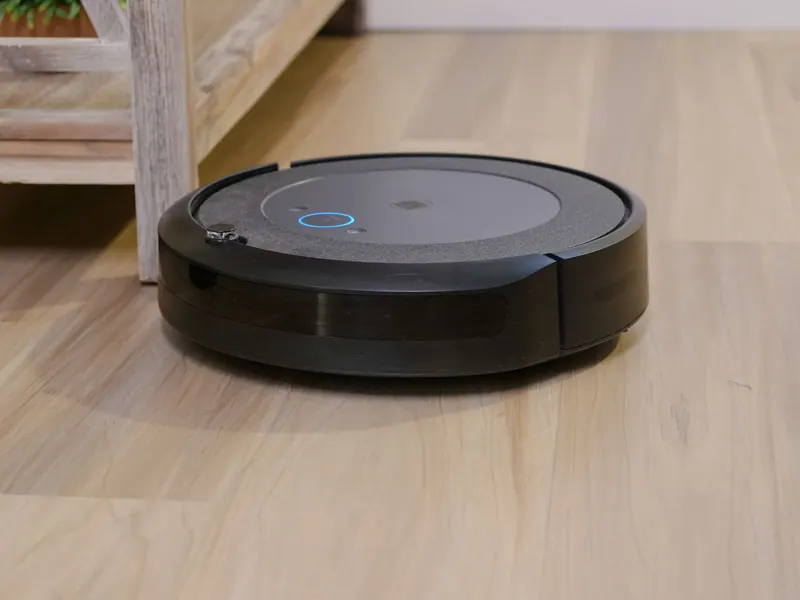
A robot vacuum that sits on its dock without charging, flashes a red light or dies a few minutes into a clean is one of the most common faults. The good news is that the cause is usually simple and free to fix. The checks below start with the quickest and work up to the battery, which is the only part that normally costs money. The same pattern applies to Shark, Ecovacs Deebot, Eufy RoboVac, Roborock, iRobot Roomba and most other brands, although light colours and button names vary, so keep your manual or the maker's app to hand.
Quick table: symptom, likely cause and what to try
Use this table to jump to the most likely cause. Light colours and their meanings differ between makers: a red or orange light often means low battery or a charging fault, but check what your model's manual says before assuming.
| Symptom | Likely cause | What to try |
|---|---|---|
| Robot on dock, no charging light | Dock unplugged, socket off or power switch off | Check the dock's light, socket and the robot's main switch |
| Charging light flickers or stops | Dirty or bent charging contacts, robot not seated | Clean contacts, reseat the robot, level the dock |
| Red or orange light that will not clear | Low battery, charging error or battery fault | Soft reset, charge for several hours, check the app |
| Charges but runs for only a few minutes | Worn battery | Replace the battery with the maker's part |
| Will not charge after being stored | Battery deeply discharged | Leave on the dock for several hours, then contact support |
Check 1: power to the dock and the robot's switch
Start with the obvious, because it catches a lot of people out. A dock plugged into an extension lead or a socket on a switched spur can lose power without you noticing. Many docks have a small light that shows when they are powered, and many robots have a separate main power switch on the side or underneath. If that switch is off, the robot will not charge however long it sits on the dock.
- 1
Check that the dock's plug is pushed fully into the wall socket and the socket is switched on.
- 2
Look for a power light on the dock. If there is none, try a different socket you know works.
- 3
Check the cable where it enters the dock for kinks, damage or a loose connector.
- 4
Find the robot's main power switch, if it has one, and make sure it is on.
- 5
Place the robot back on the dock and watch for a charging light or tone.
Check 2: clean the charging contacts
The robot charges through two metal contacts underneath that touch two contacts on the dock. Dust, hair, mop water residue and floor polish build up on these and break the connection. This is the most common cause of a robot that sits on the dock and does not charge, and it is quick to fix.
Our full guide on how to clean a robot vacuum covers the brushes, sensors and filter too, and the spares schedule suggests how often to do it.
- 1
Unplug the dock from the wall and switch the robot off.
- 2
Wipe the contacts on the robot and the dock with a dry microfibre cloth.
- 3
For stubborn marks, use a cloth very lightly dampened with water or a little rubbing alcohol, then let them dry fully.
- 4
Check that the dock's contacts spring back when pressed and are not bent or stuck down.
- 5
Plug the dock back in, switch the robot on and reseat it.
Note:Always unplug the dock before cleaning the contacts, and never use a wet cloth or spray on them. Do not use metal tools or abrasive pads, which can damage the plating.
Check 3: dock position and how the robot sits
A robot can return to the dock and still miss the contacts if the dock is on a rug, on an uneven floor, against skirting boards that push it at an angle, or if it moves when the robot drives on. Most makers recommend a clear space either side of the dock and in front of it, often around half a metre to the sides and more in front, but check your manual for your model's figures.
Place the dock on a hard, level floor against a wall, with nothing in front. If the dock slides, a strip of the maker's adhesive pad or a non-slip mat under its base can help. Self-emptying and all-in-one docks are heavy and rarely move, but a ramp that is dirty or a robot with tangled wheels can stop it lining up properly. If the robot keeps missing the dock entirely, see robot vacuum won't dock.
Check 4: soft reset and a long charge
Sometimes the robot's charging logic gets stuck after an error or a firmware update. A soft reset clears this. Switch the robot off (or hold the power button until it shuts down), wait a minute, switch it back on and put it on the dock. Unplugging the dock from the wall for a minute at the same time resets the dock too. Our reset guide explains the patterns by brand.
If the robot has been stored for weeks or the battery ran completely flat, leave it on the dock for several hours before judging. A deeply discharged lithium-ion battery can take a while to start accepting charge, and on some models the light will not change until it does. Check the maker's app too, as it often shows a charging status or an error that the lights do not.
Check 5: a worn battery
Lithium-ion batteries lose capacity over time and with charge cycles. Signs of a tired battery are a robot that charges but only cleans for a fraction of its old run time, one that shows full and then drops quickly, or one that will not accept charge at all after the checks above. Our guides to robot vacuum battery replacement and how long robot vacuums last explain what to expect.
On many robots the battery sits behind a screwed cover underneath and is designed to be swapped by the owner. Use the maker's own replacement or one listed for your exact model. If the battery is built in, or the robot is still under warranty, contact the maker's service team instead.
If the robot is old and a new battery would be a large share of the cost of a replacement, compare current models first. Our best self-emptying robot vacuums guide and the Shark robot vacuum range are good places to start.
Note:Lithium-ion batteries can overheat or catch fire if damaged. Stop using the robot and unplug the dock if the battery is swollen, hot, leaking or smells of burning. Do not pierce, crush or try to repair a battery, do not leave a faulty one charging unattended, and take old batteries to a battery recycling point rather than household waste. For anything beyond swapping a user-replaceable battery, use the maker's service or a qualified repairer.
Frequently asked questions
Why is my Eufy RoboVac showing a red light and not charging? On many Eufy models a red or flashing red light points to low battery or a charging fault. Clean the contacts, check the power switch underneath is on and leave it on the dock for a few hours. If the light stays, check the Eufy Clean app or manual for your model's meaning.
Why is my Shark robot vacuum not charging? The usual causes are dirty contacts, a power switch left off on the side of the robot, or a dock that is not on a level, clear floor. Work through the checks above, then look in the SharkClean app for an error message.
Can I leave a robot vacuum on the dock all the time? Yes. Robot vacuums are designed to live on the dock, and the charging circuit stops charging when the battery is full. If you are away for a long time, follow your manual's storage advice.
My Ecovacs Deebot will not charge. What should I check first? Check the dock's power light and the robot's power switch, then clean both sets of contacts and make sure the dock is on a level floor against a wall. If the Ecovacs Home app shows a battery error, contact Ecovacs support.
What you need
- Check price on AmazonAffiliate link
Xiaomi H40: compact 32.6 cm self-empty base
- Check price on AmazonAffiliate link
Shark PowerDetect ThermaCharged RV2920XE: heated mop wash
From: Shark robot vacuums compared: PowerDetect, Matrix and Navigator
- Check price on AmazonAffiliate link
eufy E28 Omni: 20,000 Pa plus a portable deep cleaner
From: Eufy robot vacuums compared: Omni stations and roller mops
- Check price on AmazonAffiliate link
Ecovacs T80S Omni: self-washing roller mop, 24,800 Pa