Guide
How do robot vacuums map your home?
Published
Note: This page contains affiliate links. If you buy through them we may earn a commission at no extra cost to you. Learn more
In short
Most mapping robot vacuums spin a small laser (lidar) or use one or more cameras to measure walls and furniture, then combine that with wheel and motion sensors to build a floor plan. The app turns the plan into rooms you can name, split, merge and block off. Cheaper gyro-only robots clean in tidy rows but usually keep no map you can edit.
Products for this job
Compare all 7 productsiRobot Roomba 205 DustCompactor: no emptying station needed
Check price on AmazonAffiliate linkXiaomi H40: compact 32.6 cm self-empty base
Check price on AmazonAffiliate linkTapo RV30 Max Plus: 150 minutes and 3-year warranty
Check price on AmazonAffiliate link
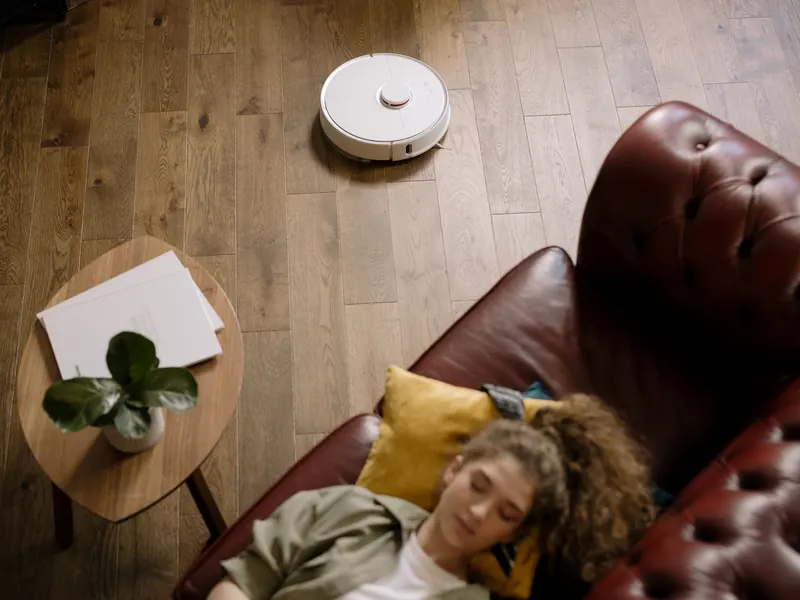
A robot vacuum that knows where it is cleans in neat lines, returns to its dock on its own and lets you send it to the kitchen after dinner instead of the whole flat. All of that depends on the map. This explainer covers the three main ways robots navigate, what the first mapping run actually does, how room splitting and no-go zones work, and how robots cope with homes on more than one floor. If you are choosing a robot for a small space, the navigation type matters as much as suction.
The three main navigation types
Robot vacuums sold in the UK broadly fall into three groups. Lidar robots carry a spinning laser sensor, usually in a small round turret on top, that measures the distance to walls and furniture many times a second. Camera robots (sometimes called vSLAM) use one or more cameras to recognise features such as door frames and corners, and newer models add a front camera or 3D sensor to spot objects on the floor. Gyro robots rely on a gyroscope, wheel sensors and bump sensors to clean in rows without building a full map.
Many current robots mix these. A lidar robot may also have a front camera or structured-light sensor for obstacle avoidance, and some makers use a solid-state or retracting laser so the robot can be lower. For a fuller side-by-side, see our explainer on lidar vs camera robot vacuums.
| Type | How it sees | Saved, editable map | Works in the dark | Typical drawback |
|---|---|---|---|---|
| Lidar | Spinning laser measures distances | Yes, on most models | Yes | Turret adds height |
| Camera (vSLAM) | Camera tracks features in the room | Yes, on most models | Needs some light, or a built-in light | Can struggle in very dark rooms |
| Gyro | Gyroscope, wheel and bump sensors | Usually not | Yes | No room selection or zones |
What happens on the first mapping run
Most app-connected robots offer a quick mapping run, where the robot drives round the edges of each room without cleaning, or they build the map during the first full clean. The robot uses SLAM (simultaneous localisation and mapping): it estimates where it is from its sensors and wheel movement, and refines the map as it sees the same walls again from different angles.
When the run ends, the app shows a floor plan and usually guesses where the rooms are by looking for doorways. You can then check the result and tidy it up. Mapping works best when the home looks the way it normally does on cleaning day.
- 1
Open all internal doors you want the robot to clean behind.
- 2
Pick up cables, socks, phone chargers and small toys from the floor.
- 3
Turn on the lights if your robot is camera based.
- 4
Start the mapping run from the app with the robot on its dock.
- 5
Leave it alone until it returns; moving it by hand can confuse the map.
- 6
Review the rooms in the app and save the map.
Room splitting, no-go zones and virtual walls
Once the map is saved, the app is where the real control lives. Room splitting lets you draw a line to divide an open-plan kitchen and living room, and merging joins two areas the robot split in the wrong place. You can name rooms, set a different suction level or water flow for each, and choose the order they are cleaned in.
No-go zones are boxes the robot will not enter, which suit pet bowls, a rug with tassels or the area behind the television. Virtual walls are lines it will not cross, handy across a doorway. Many robots with mops also offer no-mop zones for rugs and carpets. On most models these features need the app, so they rely on the robot having a saved map and a Wi-Fi connection during setup.
If you are planning how many rooms to send the robot to in one go, our floor-area adder adds up each room in square metres and compares the total with the maker's stated coverage per charge.
- Room cleaning: send the robot to one or more named rooms.
- Zone cleaning: draw a box for a quick tidy, such as under the dining table.
- Spot cleaning: tap a point on the map for a small spill.
- Cleaning order and per-room settings: suction, water flow and passes.
Multi-floor maps for houses
Most mapping robots can store more than one map, so you can carry the robot upstairs, start it and let it work out which floor it is on. Several listings mention this directly: the eufy L60 listing describes multi-floor mapping alongside room selection and no-go zones, and the Tapo RV30 Max Plus listing describes several locally stored maps for different floors. The number of maps varies by model, so check the listing or manual.
A robot only charges and self-empties at its own dock, so on a second floor it will finish where it started or stop when the battery runs low. Some households buy a second dock or a second robot for upstairs. Robots cannot climb stairs, but their cliff sensors stop them falling down them; see can robot vacuums do stairs.
Does a eufy RoboVac have mapping?
It depends on the model. Eufy, like most brands, sells both gyro robots that clean in rows without an editable map and laser or camera models with full mapping. As a rule, if the listing mentions lidar, laser navigation, room selection or no-go zones in the app, the robot keeps a saved map. If it only mentions boundary strips, path planning or a gyroscope, assume it does not.
The same check works for any brand: look for the words lidar, laser, LDS, dToF or vSLAM, and for room selection in the app. Our guide to the best robot vacuums for small flats notes the navigation type of each pick.
When maps go wrong
Maps can drift or break when furniture moves a lot, when mirrors or floor-length glass confuse a laser, or when the robot is picked up and put down mid-clean. Common signs are rooms appearing rotated, a second ghost copy of a room, or the robot refusing to enter an area it used to clean.
The usual fixes are to clean the lidar window or camera lens with a dry cloth, restore a saved backup of the map if your app offers one, or delete the map and run a fresh mapping run. Exact steps differ between apps, so check the maker's support pages. Robots with obstacle-avoiding cameras also handle clutter better; see our obstacle avoidance guide.
Frequently asked questions
Do robot vacuums store a picture of my home? A lidar map is a floor plan made of distance points, not a photo. Camera robots process images to navigate and recognise objects, and some offer remote viewing; check the maker's privacy settings and turn off features you do not want.
Can a robot vacuum map in the dark? Lidar robots can, because the laser does not need room light. Camera robots usually need some light, although some carry their own small light for dark spots under furniture.
How long does the first map take? For a typical flat, a quick mapping run is usually a matter of minutes rather than hours, while mapping during a full clean takes as long as the clean. Larger or cluttered homes take longer.
Do I need to remap after moving furniture? Not usually. Robots adapt to moved chairs and sofas. Remap only if the room layout changed, such as a new wall or a door that is now always shut.
What you need
- Check price on AmazonAffiliate link
iRobot Roomba 205 DustCompactor: no emptying station needed
- Check price on AmazonAffiliate link
Dreame X60 Max Ultra: 8 cm with two AI cameras
From: Best robot vacuums that avoid cables, socks and pet mess
- Check price on AmazonAffiliate link
Dreame L40 Ultra Gen2: 25,000 Pa and an extending mop