Fix
Eufy RoboVac troubleshooting and error codes
Published
Note: This page contains affiliate links. If you buy through them we may earn a commission at no extra cost to you. Learn more
In short
Most Eufy RoboVac errors come down to a handful of fault types: a stuck wheel, a tangled side brush or rolling brush, a blocked suction path, a jammed bumper, dirty cliff sensors or a charging problem. Codes and voice prompts differ by model, so read the exact meaning in the eufy Clean app or your manual, then clean the part it points to before trying anything harder.
Products for this job
Compare all 5 productseufy E28 Omni: 20,000 Pa plus a portable deep cleaner
Check price on AmazonAffiliate linkeufy Omni S1 Pro: 29 cm roller mop and 10-in-1 station
Check price on AmazonAffiliate linkeufy X10 Pro Omni: dual spinning mops with 12 mm lift
Check price on AmazonAffiliate link
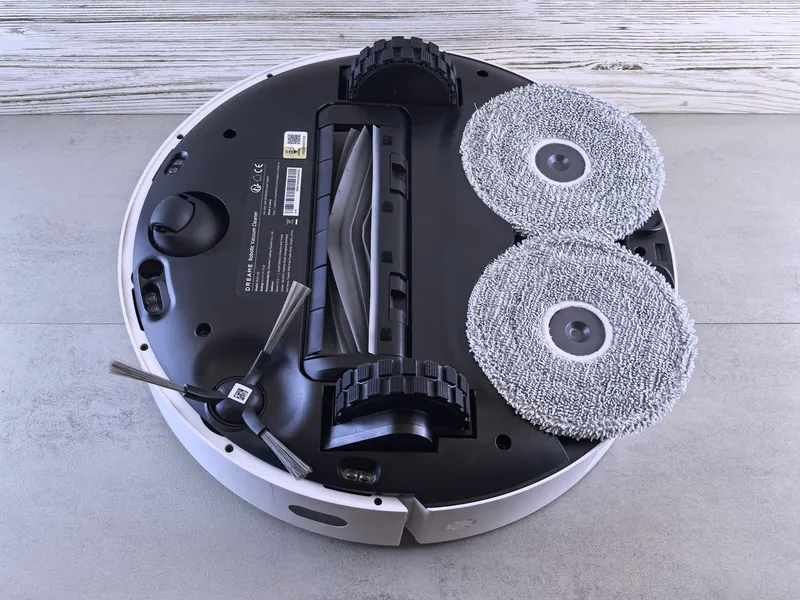
A Eufy RoboVac that stops mid-clean, beeps or flashes a red light is usually telling you one specific part needs attention. The trouble is that Eufy has sold many models over the years (the RoboVac 11 family, the G and L series, the X and Omni docks), and the codes, light patterns and spoken prompts are not the same across them. This guide sorts the faults into the common categories, gives a fix order from simplest to hardest, and points you to the app or manual for the exact code on your model.
First, find out what your model is actually saying
Before taking anything apart, get the exact message. On app-connected models, the eufy Clean app (formerly EufyHome on older robots) usually shows the error text and a suggested fix in the notifications or device page. Older models without Wi-Fi, such as many in the RoboVac 11 family, signal faults with beeps and flashing lights instead, and the manual has a table that translates the pattern.
If you see a short code such as S1, E1 or a number on its own, do not rely on a list from another model or a forum post. Eufy codes vary by model and firmware, and the same code can point to different parts on different robots. Look it up in the app first, then in the manual for your exact model number, which is printed on the label under the robot. Eufy's support site also hosts manuals if you have lost the paper copy.
- 1
Note the error text, code, voice prompt or the number of beeps and the light colour.
- 2
Check the model number on the label underneath the robot.
- 3
Open the eufy Clean app and read the error on the device page, or find the manual for that model.
- 4
Match the message to one of the fault categories below and start with the simplest fix.
The main fault categories and what to try
Whatever the exact code, nearly every Eufy fault message falls into one of the groups in the table. The fixes are listed from the quickest to the most involved. In almost every case the first job is cleaning, because hair, thread and grit cause most stoppages.
| Symptom or message | Likely cause | What to try |
|---|---|---|
| Wheel error, robot stuck or spinning in place | Hair wrapped round the axle, grit in the wheel well, or the robot is beached on a threshold or cable | Lift the robot clear, pull hair from both wheels, press each wheel in and out to check it springs back freely |
| Side brush error | Hair or thread wound round the side brush shaft | Unscrew or pull off the side brush, clear the shaft, refit or replace a bent brush |
| Rolling brush or main brush error | Hair tangled round the brush, brush not seated, string caught in the end caps | Remove the brush guard and brush, cut hair away, clean the end caps and brush housing, reseat until it clicks |
| Suction fan or suction error | Full dust bin, clogged filter, blocked inlet or a fan fault | Empty the bin, tap out or replace the filter, check the inlet behind the brush for blockages; contact support if it persists |
| Bumper stuck | Debris behind the bumper or the robot wedged under furniture | Tap the bumper all round and check it moves freely; clear grit from the gap |
| Cliff sensor error or robot will not move off the floor | Dusty sensors, very dark rugs or bright sunlight confusing the sensors | Wipe the cliff sensors with a dry microfibre cloth; try the robot on a lighter floor |
| Will not charge or does not return to base | Dirty contacts, base unplugged or moved, obstacles near the base | Clean the contacts on robot and base, check the plug, give the base clear space either side and in front |
Brushes and wheels: the fixes that solve most errors
Long hair, carpet fibres and thread are the most common cause of brush and wheel errors on any robot, and Eufy is no exception. The motors sense extra resistance and stop to protect themselves, which is when the error appears.
Work through the underside in one go rather than fixing only the part named in the message, because a partly tangled brush often triggers the next error a few days later. While the robot is upside down, check the swivel wheel at the front too: a hair-wrapped front castor makes the robot drag and can trigger wheel or stuck messages.
- 1
Switch the robot off using the power switch (on models that have one) and place it upside down on a soft towel.
- 2
Remove the side brush and clear hair from its shaft.
- 3
Release the rolling brush guard, lift out the brush and cut tangled hair along the groove; clean both end caps.
- 4
Pull out the front castor if it is removable and clear hair from its axle.
- 5
Check both drive wheels turn and spring up and down freely.
- 6
Refit everything until it clicks and run a short spot clean to test.
Suction fan, bin and filter problems
A suction or fan error, or a robot that sounds normal but leaves dust behind, usually means the airflow is blocked rather than the fan has failed. A full bin, a clogged filter or a blockage in the inlet behind the rolling brush will all choke it. On self-emptying models, a full dock bag or a blocked evacuation port on the robot can also cause a suction or emptying message.
Empty the bin, then tap the filter over a waste bin. Many Eufy filters should not be washed, while some meshes can be rinsed and must be fully dry before refitting, so check your manual. If the filter is old and grey, replace it. If the error returns with a clean path and a fresh filter, the fan itself may be at fault and that is a job for Eufy support or a qualified repairer, not a home repair.
Charging lights and docking faults
Charging problems are often caused by dirty contacts or a base in the wrong place. Wipe the metal contacts on the underside of the robot and on the base with a dry cloth. Make sure the base sits flat against a wall on a hard surface, with clear space either side and in front; the manual for your model gives the recommended clearance. Check that the base is plugged in and that the light on it is on.
If the robot has been stored flat for a long time it may need a long charge before it responds. A battery that no longer holds charge after a couple of years is a normal wear item. Use only a genuine or maker-approved replacement battery, and see our guide to robot vacuum battery replacement and the separate fixes for a robot vacuum not charging.
Note:Switch the robot off and unplug the base before cleaning contacts or removing parts. Lithium-ion batteries can be a fire risk if damaged: do not pierce, crush or open one, and do not use a battery that is swollen, hot or leaking. For electrical faults on the base or inside the robot, contact Eufy support or a qualified repairer.
When to reset and when to get help
If a fault message stays after cleaning, a simple restart often clears it: switch off, wait a minute and switch on again, or hold the power button as the manual describes. App-connected models may also offer a firmware update, which can fix software glitches. A full factory reset is a last resort because it wipes maps and settings; see how to reset a robot vacuum for the general approach, and follow your model's manual for the exact button sequence.
Contact Eufy support if the same error comes back with every part cleaned and refitted, if a wheel or brush motor does not turn at all, or if you notice a burning smell. If you are thinking of replacing an older robot, our Eufy robot vacuums compared guide explains the current range, and the best robot vacuums for small flats covers compact options.
Frequently asked questions
What does error S1 mean on a Eufy RoboVac? It depends on the model. Short codes are not consistent across the Eufy range, so check the eufy Clean app, which usually shows a written explanation, or the manual for the model number on the label under your robot.
Why does my RoboVac 11 keep beeping? Older RoboVac 11 models signal faults with a set number of beeps and a light pattern. The manual has a table for these. Most point to a stuck wheel, a tangled brush, a blocked suction path or a low battery, so a full clean of the underside is a good first step.
How do I fix a suction fan error on a Eufy? Empty the bin, clean or replace the filter and check the inlet behind the rolling brush for blockages. If the error continues with clear airflow, contact Eufy support, as the fan may need repair.
Can I use cheap third-party brushes and filters? Many fit, but quality varies and a poorly fitting part can cause new errors. Genuine parts are the safer choice, and for batteries always use a genuine or maker-approved replacement.
What you need
- Check price on AmazonAffiliate link
eufy E28 Omni: 20,000 Pa plus a portable deep cleaner
From: Eufy robot vacuums compared: Omni stations and roller mops
- Check price on AmazonAffiliate link
iRobot Roomba 205 DustCompactor: no emptying station needed
- Check price on AmazonAffiliate link
iRobot Roomba Combo 10 Max: mop retracts to top of robot